Appearance settings change the Terminal’s visual presentation. The terminal clock timezone is separate from timezone settings inside an individual Chart.
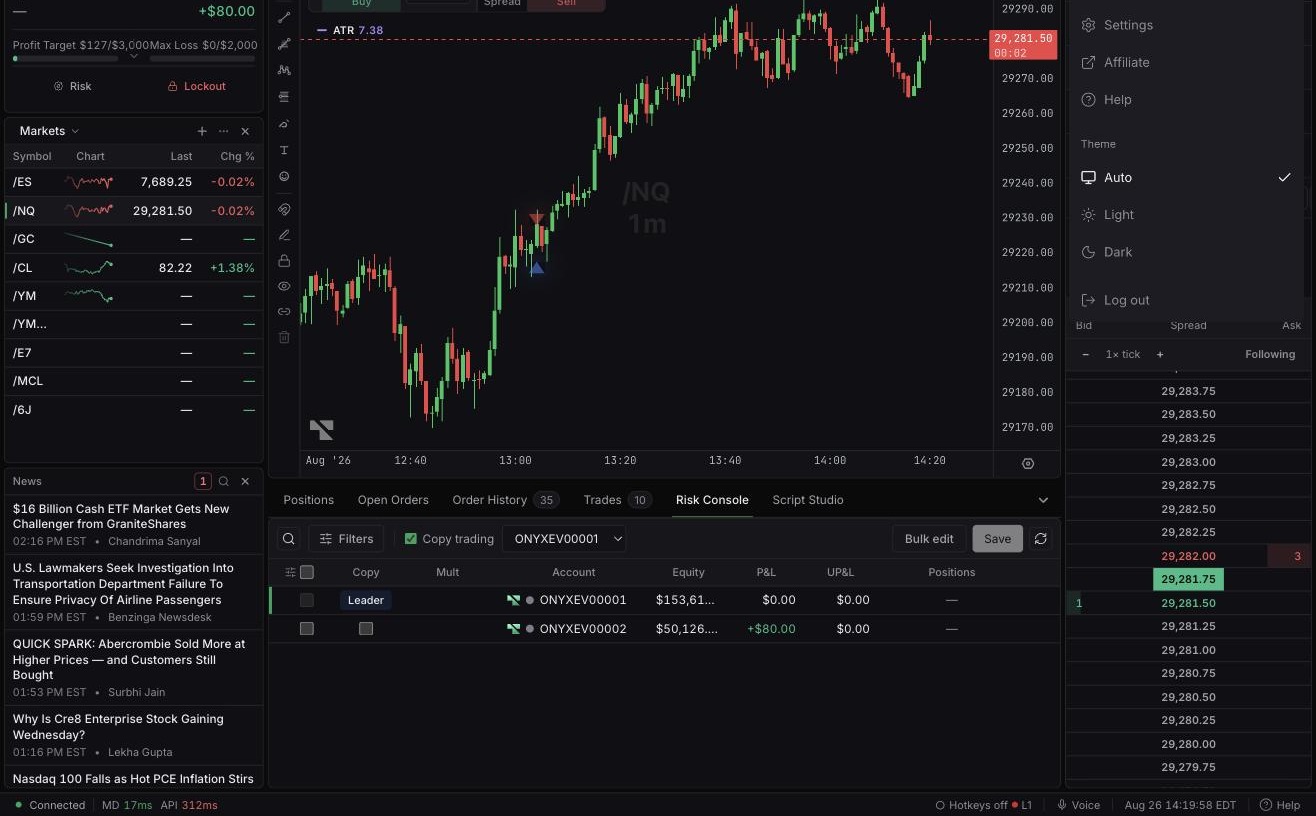
Open Settings.
Open General.
Under Appearance, choose Light, Dark, or System from Color mode.
Choose a palette under Tradara themes, or adjust Custom theme.
Close Settings and review the workspace.
The Terminal updates immediately and saves the preference on this device.
Tradara themes offers a set of named built-in palettes alongside the default Tradara look, including darker and higher-contrast options meant for long sessions and low-light rooms. Selecting Custom theme exposes the individual color tokens behind the interface — window background, panel surfaces, inputs and menus, selected items, primary and secondary text, and borders — plus a gradient toggle that blends the selected-item color into the surrounding chrome. Copy theme and Import move a token set between browsers; a randomizer generates a starting palette to adjust from, and Reset returns to the default. Custom tokens are a display change only, layered on top of Color mode.
Locate the clock in the bottom status bar.
Open Clock options.
Choose Eastern standard time, Localized time, or a market timezone.
The status-bar clock updates to the selected timezone.
Appearance settings do not alter chart data, account state, or firm rules. The terminal clock timezone does not change exchange sessions, order timestamps from upstream systems, or a Chart’s timezone.
If an appearance control appears unchanged, refresh after confirming the setting was selected.
If chart labels still use another timezone, change timezone from the Chart settings instead.