Share codes and JSON copies move workspace configuration between signed-in Tradara users and devices. They do not share account access, orders, or trading data.
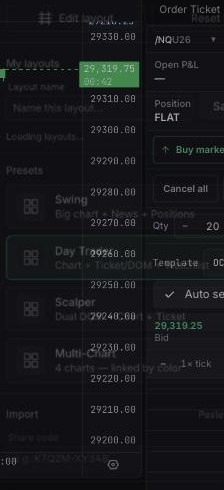
Open the desktop Tradara Terminal. Sign in to create or import a share code. Only saved layouts can receive a share code.
An instructional video will be added here to illustrate how to properly utilize layout sharing and transfer tools.
Open the workspace menu and find My layouts.
Locate the saved layout to share.
Select its Create a share code action.
Copy the code shown in the confirmation if clipboard access is unavailable.
Tradara copies a formatted share code to the clipboard or displays it in the confirmation.
Share-code import creates a layout in your account and applies it to the current workspace.
Copy the complete share code.
Open the workspace menu and find Import.
Enter the code in Share code.
Select Import.
Tradara confirms Imported and applies the shared layout. It then appears in My layouts as imported. A revoked or unknown code cannot be imported.
Export JSON creates a portable representation of the current active workspace.
Open the workspace menu.
Under My layouts, select Export JSON.
Paste the copied JSON somewhere safe, or locate the downloaded workspace file if clipboard access is unavailable.
Tradara confirms that workspace JSON was copied or downloaded. If clipboard access is blocked, allow the browser download and look for a file named from the workspace ID.
JSON import is useful when someone provides the workspace document rather than a share code.
Open the workspace menu and go to Import.
Select Paste JSON instead.
Paste the workspace JSON into Workspace JSON document.
Select Apply JSON layout.
A valid document becomes the active workspace immediately. Only versioned Tradara workspace documents are accepted.
Share codes and exports describe workspace configuration, not brokerage credentials, account permissions, orders, or positions. Treat JSON from unknown sources cautiously and review the resulting widgets.
If code creation or import fails, retry while signed in and connected.
Check every character if Tradara reports Unknown or revoked share code. Ask the sender to create a new code if needed.
Could not parse the JSON means the text is malformed. A validity error means it is not a supported workspace document.