A saved layout records the workspace document so you can load that arrangement later. Presets are built-in templates, separate from layouts you save under My layouts.
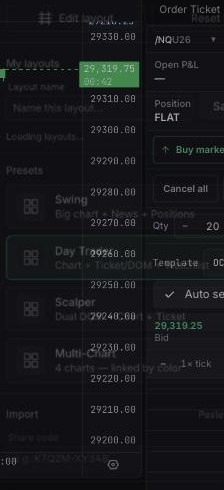
Arrange the widgets you want.
Open the workspace menu and find My layouts.
Enter a Layout name.
Select Save current.
A confirmation says the named layout was saved, and it appears under My layouts. A layout limit can require deleting an older layout first.
Open the workspace menu.
Under My layouts, select the layout name you want.
Wait for the layout to apply.
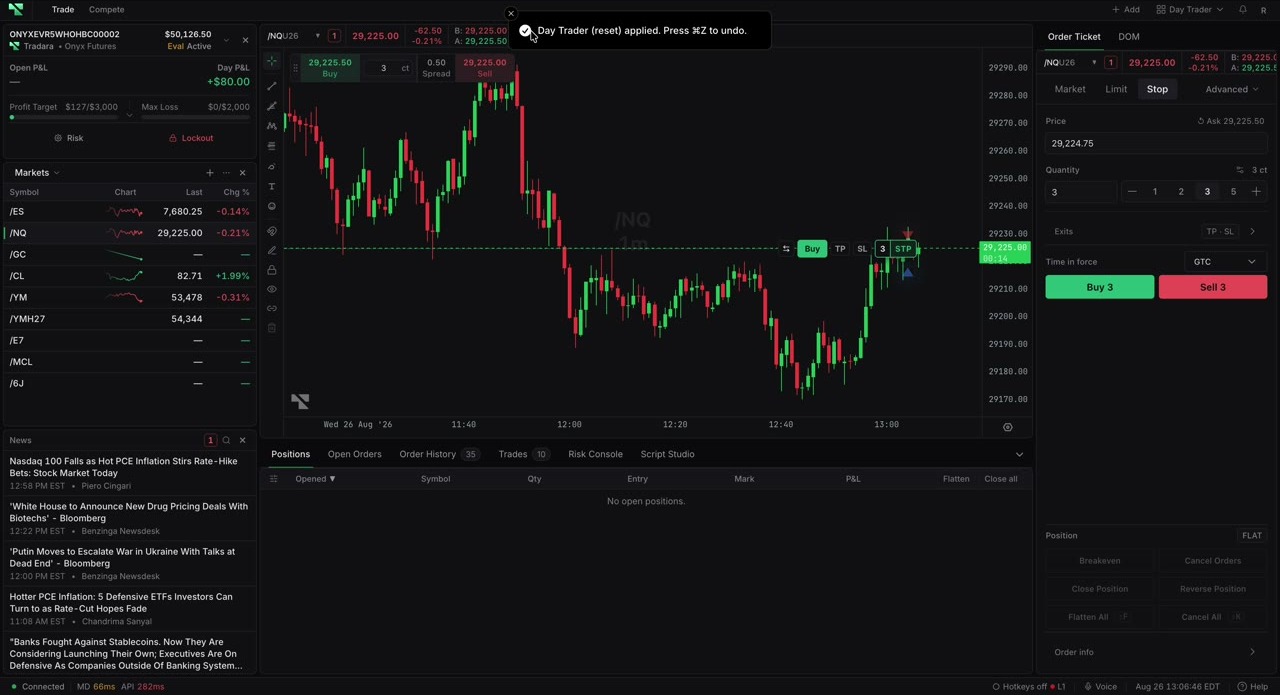
The selected layout replaces the current workspace. Tradara confirms it was applied and offers undo with ⌘Z. Save unsaved work first if you need to keep it. An incompatible layout is not applied.
Open My layouts.
Select Delete beside the layout.
Select the confirmation action again when it changes to Sure?.
The layout disappears from My layouts and Tradara confirms deletion. Deletion is not an undoable workspace edit. Export JSON first if you need a backup. Deleting a saved layout clears that named server record; it does not close the active Terminal.
Open the workspace menu.
Under Presets, review the available preset descriptions.
Select Swing, Day Trader, Scalper, or Multi-Chart.
The preset replaces the active workspace and can be undone with ⌘Z. Save your current layout first if you want to retain it.
Reset layout recreates the preset associated with the active workspace.
Open the workspace menu.
Select Reset layout.
Review the restored arrangement.
Tradara applies the preset reset and offers ⌘Z to undo. Reset replaces current workspace changes. If the wrong starting point returns, choose the desired item under Presets instead.
Tradara saves the active workspace locally first and mirrors it to your account when the layout service is available.
Make a workspace change.
If Layout sync is unavailable — changes are saved on this device only appears, keep the Terminal open and export the layout as JSON if you need a portable backup.
The local workspace survives refreshes on the same browser. Signed-in account sync allows a newer remote layout to follow you to another device. When signed out, offline, or the service is unavailable, local storage is the source of truth. Clearing browser data can remove that local-only copy.
Loading a layout, applying a preset, or choosing Reset layout replaces the active workspace arrangement. Undo covers those workspace edits; remote layout deletion is not an undoable workspace edit.
If saving fails, keep the terminal open; the active layout still saves locally on this device.
If loading fails, retry after checking your connection.
If deletion fails, retry while signed in. The active workspace remains available.
Export JSON before clearing browser data. If two devices show different layouts, use the version you intend to keep and save or export it explicitly.