
Understand the account details Tradara displays and keep account-scoped activity separate when you switch among assigned accounts.
Video walkthrough
An instructional video will be added here to illustrate how to properly utilize Tradara's account selection and review tools.
Understand account details
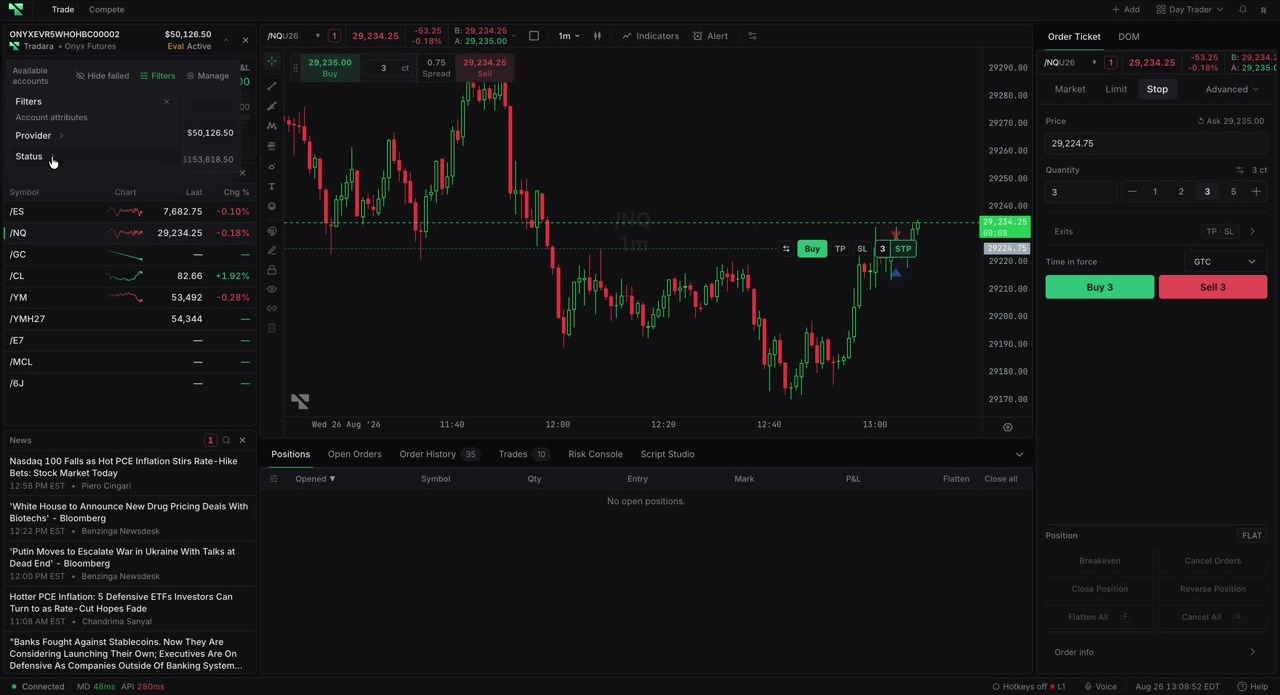
Open Accounts and identify an account by name, firm or provider, type, and status. Expand its metrics to review equity, open P&L, and supplied rules.
Switch accounts
Open the account selector or Accounts widget.
Search or filter by provider and status if needed.
Select an account and confirm its name, status, equity, and type.
Recheck the account shown in the Order Ticket before submitting an order.
Use the header account strip
When the Accounts widget is not in your workspace, open the account strip in the Terminal header. Choose a trading account or available copy group, then verify the displayed name before trading. If the strip is unavailable, use the selector in Accounts instead.
Work with multiple accounts
Use search and filters to narrow a large account list. Select one account at a time; balances, positions, orders, and rules do not merge across accounts.
The selected account becomes the context for account-aware trading surfaces, while filters narrow the account list without combining account activity.
Account boundaries
Switching accounts does not move positions or orders, and access to multiple accounts does not copy trades. Account or copy-group selection does not bypass firm restrictions, lockouts, market-data requirements, or copy-group health checks. Confirm the selected trading account before submitting an order.
If an account is missing
Clear search and filters if an assigned account is hidden.
If the selected account disappears, reopen the selector after the account list refreshes.
A dash means the surface has no value to display.