Create a supported TradaraScript study, check it, save it privately, and add it to a chart.
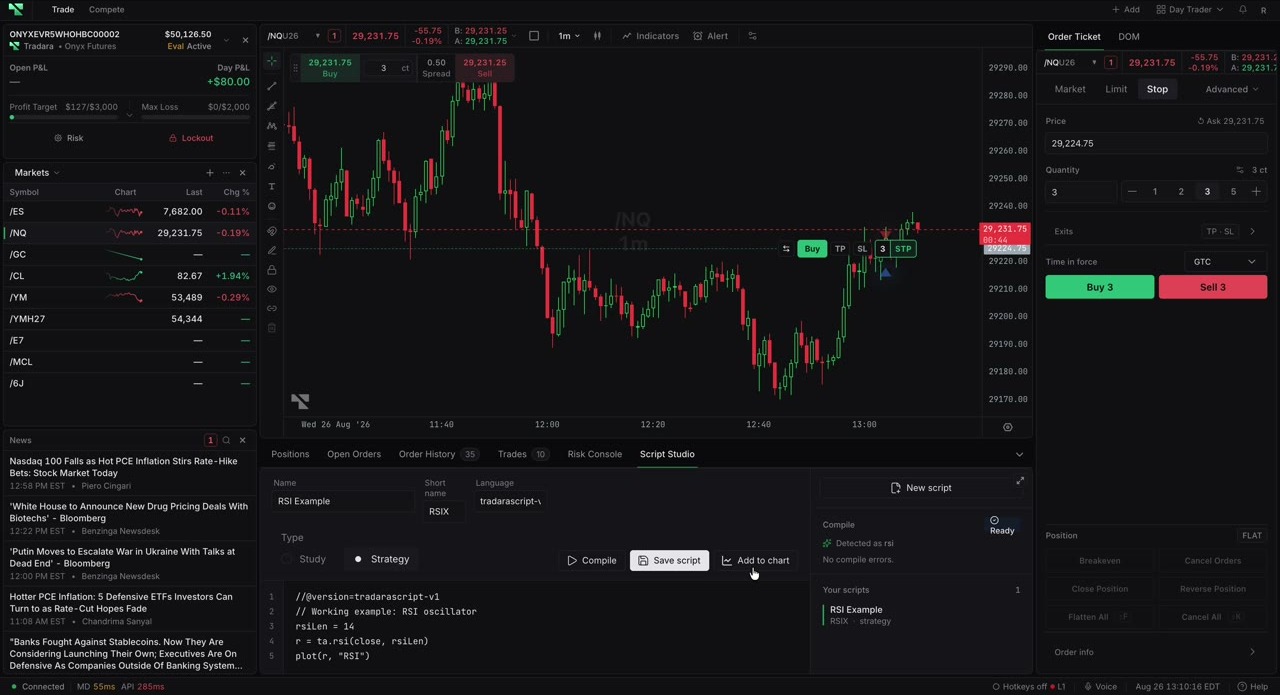
Sign in to the Tradara Terminal and open an editable workspace with a Chart widget. TradaraScript studies require a time-based chart.
Select \+ Add > Add to workspace, find Script Studio under Account & tools, and place the widget. Widen it if the compile rail or Your scripts list is hidden.
Select New script.
Enter a Name and optional eight-character Short name.
Keep Language set to `tradarascript-v1` and Type set to Study.
Use the starter source or a supported marker such as `ta.sma`.
Select Compile, wait for Ready, and confirm Detected as shows the intended family. Errors means the request failed or no supported family was detected.
Select Save script. Each save creates a new script record in the current UI. Selecting a saved item under Your scripts loads its latest source.
Select the saved script and choose Add to chart, or open Indicators > My scripts on a Chart widget, review its settings, and choose Add to chart.
The saved script appears under Your scripts and Indicators > My scripts. A supported chart instance uses the active instrument, mapped time resolution, and predefined family metadata.
Scripts do not place orders, and Strategy does not enable backtesting. Unsaved text cannot be added to a chart. Saving does not update a selected record in place, and the customer UI has no delete, import, sharing, or version-restore control.
Add source if Compile is disabled; add a name if Save script is disabled.
If the wrong family is detected, compile a minimal source with only the intended marker.
If nothing appears, confirm the script saved successfully, an instrument is selected, and the chart is not in tick or range mode.