
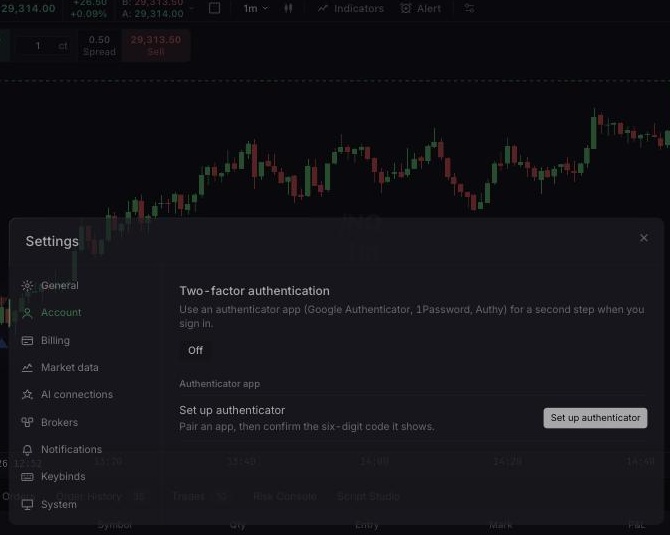
Use this guide to strengthen the identity you use to sign in to Tradara and to end a session safely on a shared device. You will learn where to enable authenticator-based two-factor authentication, what the sign-in flow asks for afterward, and which secrets you must never share. These controls protect your Tradara login; they do not change an evaluation, simulated, or live account’s trading rules.
Before you start
Sign in to the terminal on a device you trust.
Install an authenticator app before starting two-factor setup.
Keep access to the email address connected to your Tradara identity.
Protect your password and sessions
Use a unique password of at least eight characters. Never send Support your password, QR setup secret, authenticator code, or reset link.
Set up two-factor authentication
Open the profile menu, select Settings, and stay on the account settings view.
Select Set up authenticator.
Scan the QR code with your authenticator app. If you cannot scan it, enter the displayed key and identify the entry as Tradara with your account email.
Enter the current six-digit Verification code and select Confirm enable. Confirm that Two-factor authentication changes from Off to Active.
Sign out on a shared device
Open the profile menu.
Select Log out.
Wait for the sign-in screen before leaving a shared device.
After setup, Tradara asks for an Authenticator code when a sign-in response requires MFA. Two-factor authentication shows Active, and Log out clears the local credentials for your current session.
Keep authentication secrets private
Keep the QR code, setup key, password, and one-time codes private. Do not continue if you did not initiate the sign-in or settings change. Log out ends the current session; this guide does not provide a user-facing session list.
If setup or sign-in fails
Select Retry if the two-factor settings fail to load.
Use a fresh six-digit code if Confirm enable rejects an older code; authenticator codes change frequently.
Select Forgot password? on email sign-in if you no longer trust your password.
Contact Support without sharing the setup key or a one-time code if you lose access to your authenticator.