Sending your first order from the terminal means verifying the trading account and instrument, choosing an implemented order type, entering valid quantity and price details, and then finding the resulting state in the activity tables. This walks through order entry; it is not a promise that an accepted request will fill.
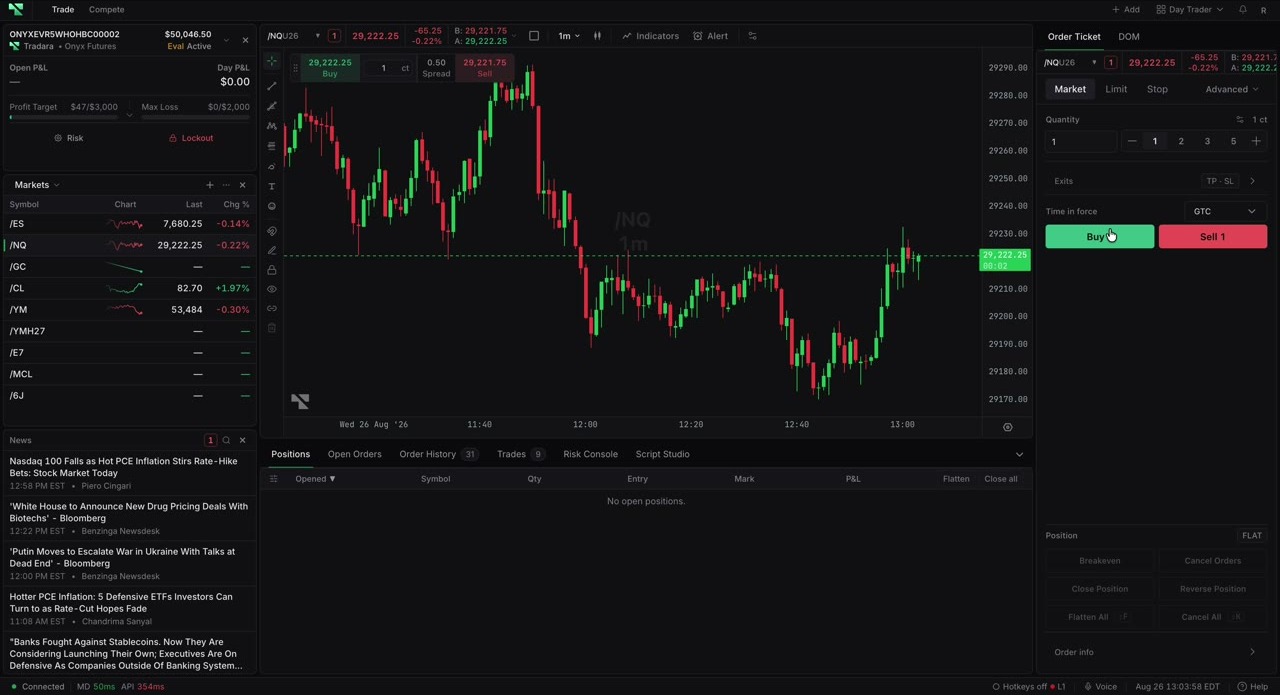
Sign in and complete market-data onboarding for the instrument you intend to trade.
Have an assigned account with Active status, and know whether it is evaluation, practice, trial, simulated-funded, or live.
Confirm the footer connection panel shows market data and Trading API connected.
Review the account’s displayed loss and position limits before you size the order.
Open Accounts, select the intended account, and confirm its name, account type, and Active status.
Confirm the same selected trading account immediately before submitting. Evaluation and simulated accounts can enforce rules, while live accounts involve real-money exposure.
Select the intended instrument and verify the symbol shown in the linked Order Ticket.
Choose Market, Limit, or Stop. Options shown under Advanced are disabled and cannot be submitted.
Enter a positive Quantity. Futures quantities must be whole contracts.
For Limit or Stop, enter a positive Price. Tradara validates it against the instrument’s tick size.
Review the selected time in force. If you open Exits, enable and verify each take-profit or stop-loss value before continuing.
Recheck the account, symbol, order type, side, quantity, price, and optional exits.
Select Buy or Sell once.
Wait for the submission message, then open Open Orders or Order History. Read the status and any rejection reason rather than assuming the request was accepted or filled.
Tradara reports Order submitted or an error. A successfully returned order is merged into the selected account’s activity and appears in Open Orders while it is working, then moves to Order History after a terminal state such as filled, cancelled, rejected, or expired.
Submission does not guarantee acceptance, execution, price, or fill quantity. Market conditions, account status, market-data entitlement, instrument policy, trading hours, position limits, and loss rules can all reject an order, and simulated execution does not remove the risk or rules that apply to an evaluation or live account later.
No account selected. Choose an account first.: open Accounts, select the intended account, and confirm it again before retrying.
No instrument selected for this ticket or Market data required to trade this symbol.: reselect the instrument and confirm market-data access.
A quantity or price validation message: enter a positive quantity and a tick-aligned Price for Limit or Stop.
A risk or account rejection: read the reason in Order History. Do not retry it unchanged or try to work around the account rule.