The Accounts widget does two jobs: it chooses the active trading account or copy group, and it keeps that account's health visible beside your workspace — equity, open and day P&L, rule progress, stage and status, plus personal risk and lockout controls. Changing the account here changes the terminal's account-wide positions, orders, trades, and order-entry context. It is a singleton, so a workspace holds at most one.
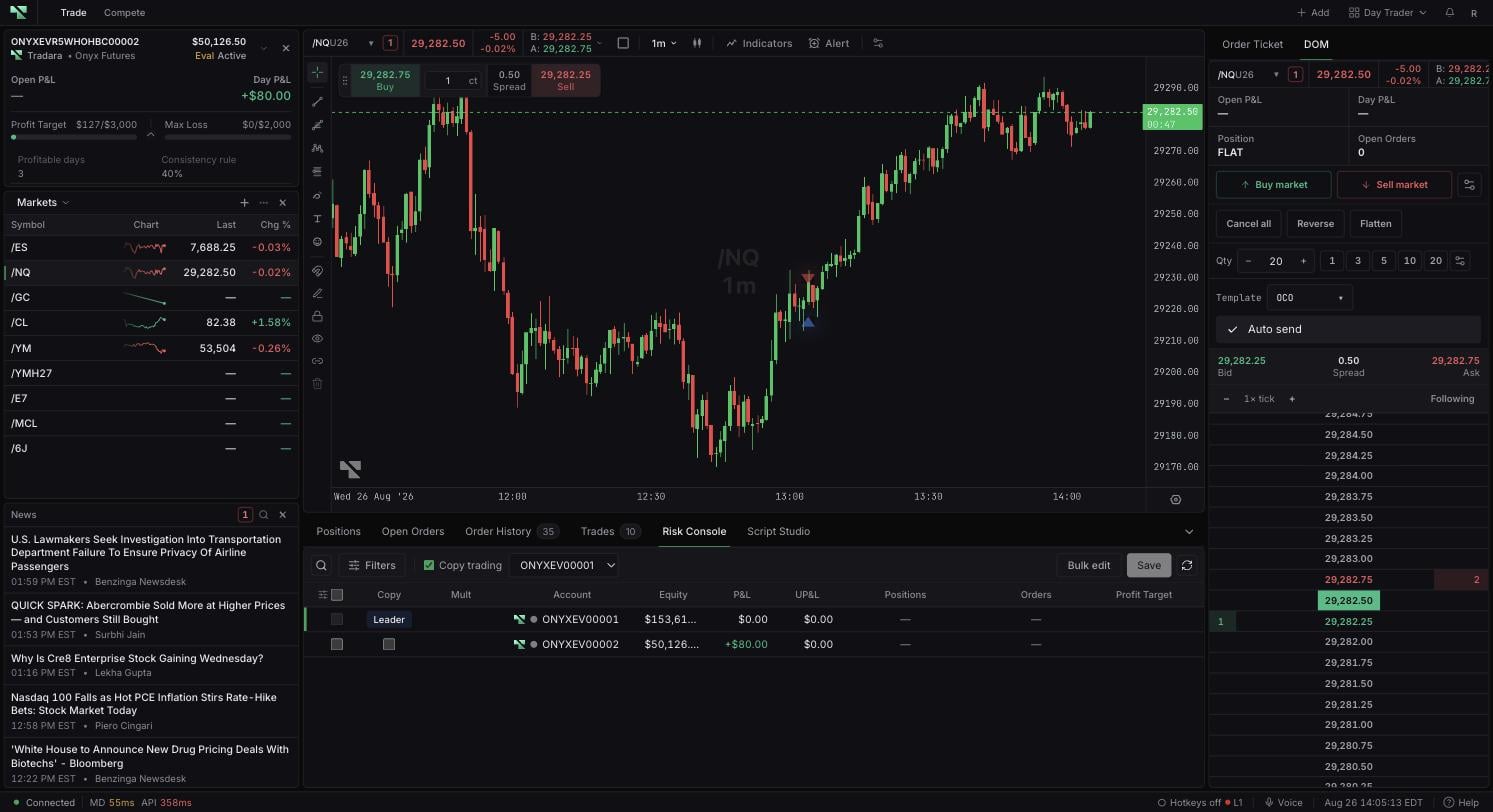
Selecting the account name at the top of the widget opens Trade selector. From there you can search by group or account, narrow results with Filters for provider or status, or select Hide failed.
Accounts appear under Accounts, and copy groups appear separately under Trade Copy Groups with their leader and member count. Selecting a standalone account deselects the active copy group. Manage in Trade selector opens account-management settings.
Display
What it means
Account header
Selected account or active group, provider or firm, account stage, status, and equity.
Open P&L
Live unrealized P&L across open positions when marks and instrument metadata are available.
Day P&L
Today's realized P&L from the balance feed.
Profit Target or Daily Loss
Evaluation accounts show profit-target progress; other accounts show daily-loss usage when configured.
Max Loss
Amount of maximum-loss allowance used against the displayed limit.
Profitable days
Required profitable-day value for an evaluation account when supplied.
Consistency rule
Evaluation consistency percentage when supplied.
The chevron between the risk bars reveals Profitable days and Consistency rule. Open P&L depends on usable market marks and instrument metadata; a — means a live value could not be calculated, not that P&L is zero.
Confirm the stage label — Practice, Eval, Sim funded, or Live — and the status before you trade, since a practice or otherwise simulated account is distinct from an evaluation, simulated-funded, or live account and the rules differ between them.
Daily loss, maximum loss, trailing drawdown, and firm-managed restrictions cannot be disabled, bypassed, or worked around, and a failed or firm-locked account cannot be made tradable from this widget. A maximum-drawdown or failure overlay says trading is disabled and directs you to switch accounts; dismissing the notice does not restore trading.
Risk reviews or edits personal risk limits for the selected account. Lockout pauses new trading for a configured period.
Select \+ Add in an editable workspace.
Choose Accounts under Account & tools. Its card description is Balances & accounts.
If the widget is already present, locate the existing instance — and note that the header account strip can provide account selection when the widget is absent entirely.
Loading accounts... means account data has not finished loading. A red message displays the account-loading error.
No accounts available. means no account was returned for your signed-in user.
No accounts match your filters. means you should clear the search, provider filters, status filters, or Hide failed.
If P&L shows —, verify market data and allow position instrument details to load. If you are signed out, use the widget's Sign in action.