The Order History widget is the read-only log of orders that reached a historical state on the selected account: filled, cancelled, expired, and rejected. It is where you compare requested quantity against filled quantity and read why an order was rejected. Orders that can still be cancelled live in Open Orders instead.
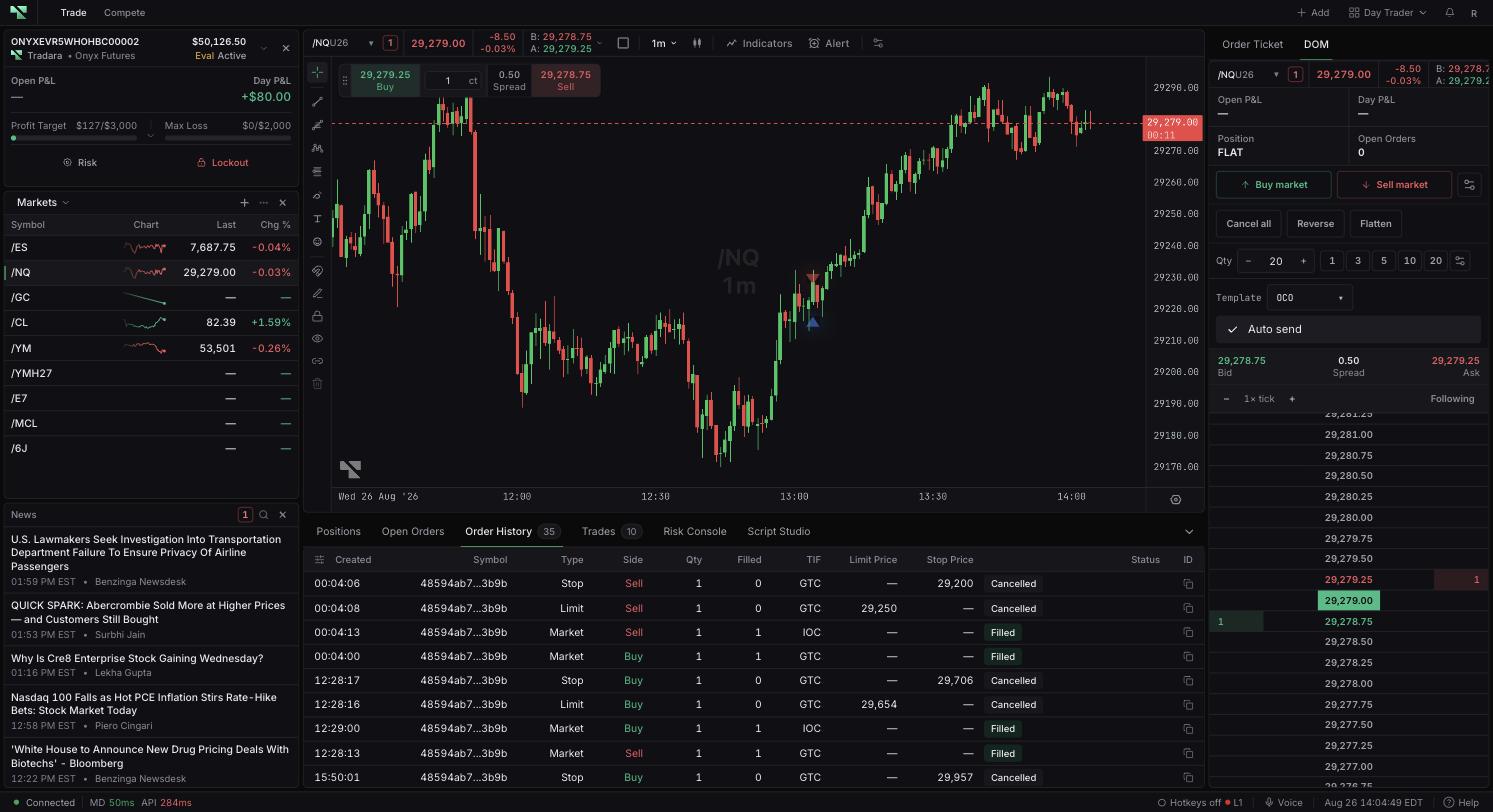
Column
What it means
ID
Unique order ID; use the copy control to capture the full value.
Created
Time Tradara created the order record.
Updated
Time of the latest recorded order-state change.
Account
Account ID that submitted the order.
Firm
Firm ID when present.
Symbol
Instrument associated with the order.
Side
Buy or sell direction.
Qty
Original requested quantity.
Filled
Quantity that actually executed.
Type
Execution type used by the order.
TIF
Time-in-force instruction.
Limit Price
Submitted limit price, if any.
Stop Price
Submitted stop trigger, if any.
Status
Terminal or historical state, with a rejection preview when available.
Rows created through copy replication can carry Copy Fill or Copy Backfill beside the status.
Comparing Qty with Filled distinguishes a complete fill from a partial execution or no execution at all. A Filled status records that execution happened; it does not promise the price matched the requested price or that no slippage occurred.
For a rejected order, the preview beside Rejected gives the short reason, and hovering the status area shows the full recorded reason. The copy control in ID captures the exact order identifier when you need to reference it.
Sortable headings sort on selection and reverse on a second selection. Configure order history columns adds, removes, or reorders fields, or restores them with Load defaults, and dragging a divider between headings resizes adjacent columns. The widget has no text or date filter.
Every instance reads the currently selected account, so confirm which account you are looking at when comparing simulated, evaluation, simulated-funded, and live activity. Similar symbols and quantities appear across accounts, and the table itself does not distinguish them for you.
Select \+ Add in an editable workspace.
Choose Order History under Your book. Its card description is Filled & cancelled order log.
Confirm the selected account.
Loading order history… means the order feed is still loading. A red error message means retrieval failed.
No historical orders. means the selected account has no loaded historical rows.
If a symbol appears as a shortened identifier, instrument-name resolution has not completed; allow it to load or refresh.
If an expected order is still in Open Orders, it has not reached the historical set yet. Wait for reconciliation before treating it as missing.